Schemity is database design software you install locally, so installation is a normal app download for your operating system. No account and no internet connection are required to run it.
How do I download and install Schemity?
Get the installer for your platform from the Schemity website:
- macOS - a
.dmgfor Apple Silicon or Intel. Drag Schemity into your Applications folder. - Windows - a
.msiinstaller for Windows 10/11 (x64). - Linux - a
.debpackage for the Ubuntu and Debian family.
Once installed, Schemity keeps itself up to date through its built-in updater, so you only download an installer the first time.
There is also a free web version that runs in the browser if you just want to try designing without installing anything.
What happens on first launch?
Schemity opens to the Diagram Manager. A default workspace is created for you, with a ready-made Sample Blog Diagram in it, so you have something to open and explore right away.
- Workspace (left) lists your workspaces. A branch icon marks one whose folder is inside a Git repository. Use + to create a workspace, and the icon beside it to import an existing folder.
- Diagram (right) lists the diagrams in the selected workspace. Under each name is what it is connected to:
host : databasefor a live database, or Offline ERD for a design-only diagram. Use + to create a diagram, the icon beside it to import one, and the folder icon to open the workspace folder. Each diagram also shows how many entities and relations it holds. - Search finds a diagram in any workspace by its name, its database name, or its workspace name. Press
⌘F(Ctrl+Fon Windows and Linux) or click the search button in the Diagram header, then open the result straight away. - Bottom bar shows your version and license status (Trial during the trial), the interface language, and the light/dark theme switch.
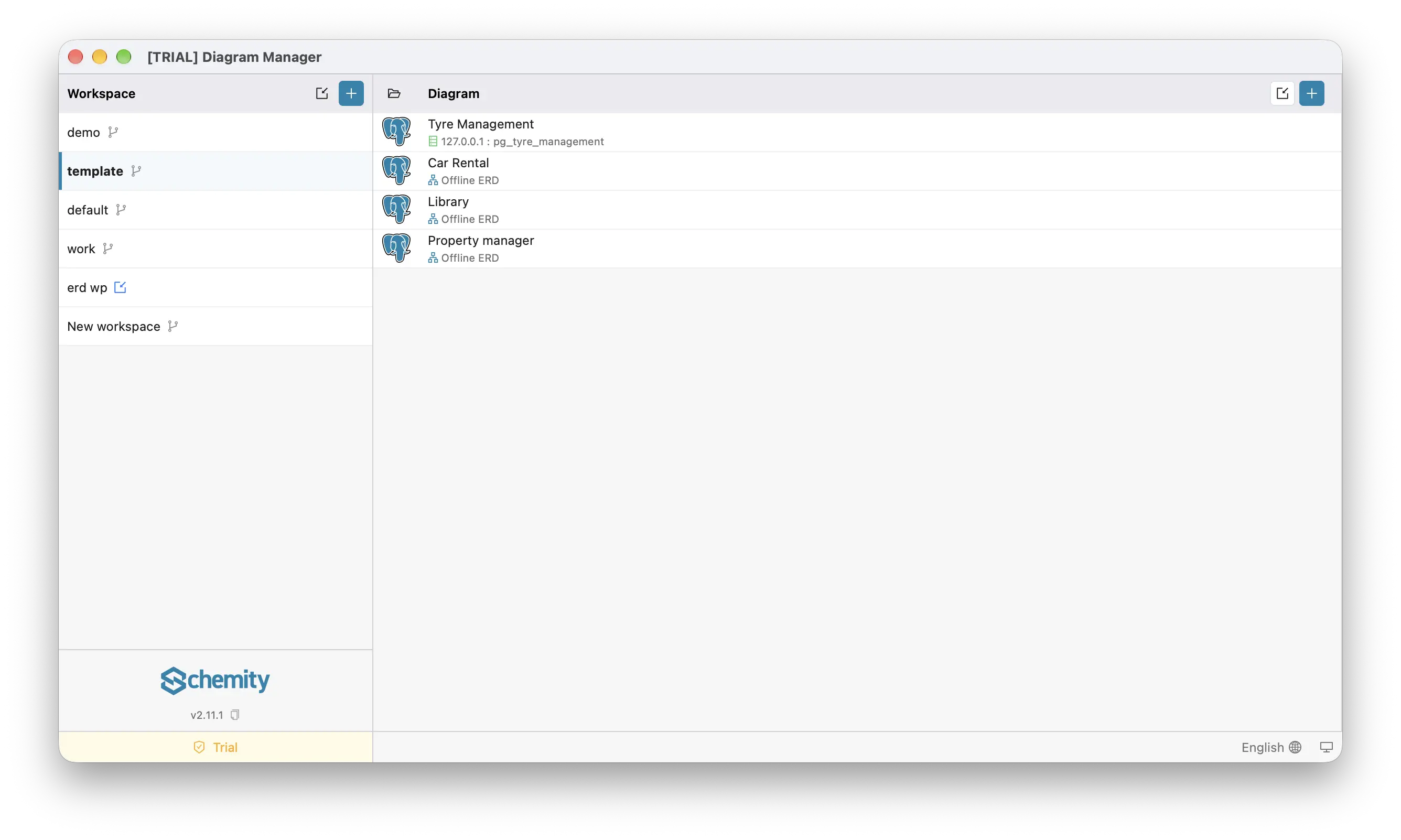
Because Schemity runs air-gapped, nothing phones home - you can run it on a machine that has never touched the internet. If your operating system warns about an app from an outside developer, allow it the way you would any signed desktop application.
What is the difference between the free and licensed versions?
Schemity is a one-time purchase, not a subscription:
- Two-week trial - the desktop app with every feature unlocked, no credit card. Image exports carry a small watermark.
- After the trial, and Schemity Lite in the browser - design schemas with no database behind them: entities, relationships, and constraints.
- Licensed desktop (one-time) - keeps everything the trial had: live database connections, importing SQL, impact analysis, lint, context views, the MCP server for AI agents, generating and applying migrations, and watermark-free exports.
You enter your license key once to activate. Since v2.13.0, an expired trial also keeps installing every update: what stays unlocked after the trial is basic diagramming, so there is no reason to freeze it on an old version.
How do I move my license to another machine?
A license is active on up to 3 machines at once. To free one, open the License dialog on the machine you are leaving and click Deactivate this machine: the seat is released for another machine, and this one goes back to its trial, which may already have ended. If the machine was activated without saving its key, the dialog asks for the key first.
The Team License ($499, one-time) is for up to 5 engineers and covers 15 machines shared across the team. The person who bought it signs in at license.schemity.com/seats with a link sent to the purchase email, sees every machine holding a seat with its platform, country, and when it was last seen, and can free any seat remotely, for a teammate who left or a laptop that died. Seats appear there after the first machine activates.
What if Schemity cannot reach the license server?
Activation needs the license server once. If a check fails, the License dialog shows why, with text you can copy into a support request, and a badge appears while the server is unreachable. You can keep working, and you can still enter a key. On a machine that can never reach the server, send feedback or email support@schemity.com: you get an activation token for that machine, which you paste into the license key field instead of the key.
Can I use Schemity in Japanese or Chinese?
Yes. The interface is available in English, Japanese, and Simplified Chinese. Pick a language from the globe dropdown on the diagram list or in the diagram footer. It applies immediately, with no restart, and Schemity remembers it next time. English is the default.
Only the interface changes. What Schemity generates stays in English: SQL, migrations, and the data dictionary. That way an export diffs the same whoever made it. Your own entity, field, and legend names are never translated.
Next
Once installed, continue to Create a Workspace.