A diagram is most useful when it can become real tables. Schemity exports your ERD as DDL - the CREATE statements that build the schema in your database.
What export formats does Schemity support?
From the export menu you can save the current diagram as:
- PNG - a raster image with transparency.
- JPEG - a smaller raster image.
- SVG - vector output with selectable text that scales infinitely, and opens as editable artwork in Figma, Affinity Designer, Illustrator and Inkscape.
- SQL - a plain-text file of the CREATE statements for the view on screen, written for the diagram’s own database or converted to another one.
- DBML - a schema definition file for dbdiagram.io and the wider DBML toolchain.
- Mermaid - an erDiagram file that Mermaid-enabled platforms render as a diagram.
- PlantUML and D2 - diagram-as-code files, with tables grouped by their legends.
- OpenAPI 3.1 - a JSON file with one schema per table: types, required and nullable columns, enum values, and descriptions.
- Data dictionary - the schema as a document in HTML, Markdown, Excel, or a print-ready PDF. See Data Dictionary Export.
How do I generate DDL from my ERD?
Choose Export > SQL file. A SQL dialog opens with the script for the view on screen - the whole schema from the main diagram, or one domain from a context view - written for the diagram’s database. Check it, then click Save SQL file…. The script contains:
CREATE TABLEstatements with columns, types, and nullability- Primary keys, including composite keys
- Foreign keys that match your relationships
- Unique and check constraints, and indexes
Virtual relations are left out of SQL and DBML exports: they document dependencies the database does not declare, and exporting one would turn documentation into a real foreign key.
Can I get the SQL for just part of the diagram?
Yes. Right-click an entity, a multi-selection, or a legend and choose Get SQL (Cmd/Ctrl+Shift+S). The same SQL dialog opens with just those tables, with Copy and Save SQL file…, and it can convert them to another database too (below). DBML describes a whole diagram, so it comes only from Export > DBML file.
Does the generated SQL match my database engine?
The output respects your target engine. Data types, default-value syntax, and constraint formatting follow PostgreSQL, MySQL, SQL Server, SQLite, or Snowflake conventions, so the SQL is ready to run on the database you actually use.
Can I convert the SQL to another database?
Yes. The SQL dialog behind Get SQL and Export > SQL file has a Database dropdown, set to the diagram’s own database, which is marked (this diagram). Pick another - PostgreSQL, MySQL, SQL Server, SQLite, or Snowflake - and the script is rewritten for it on the spot:
- Open the SQL dialog with Export > SQL file, or with Get SQL for a selection.
- Choose the target in Database.
- Read the conversion report above the script, then click Copy or Save SQL file…. The suggested file name carries the target, for example
billing.mysql.sql, and the report is also written as a comment block at the top of the script, so whoever runs it sees the same notes.
Converting to another database is a licensed feature; after a trial expires, only the diagram’s own database can be picked.
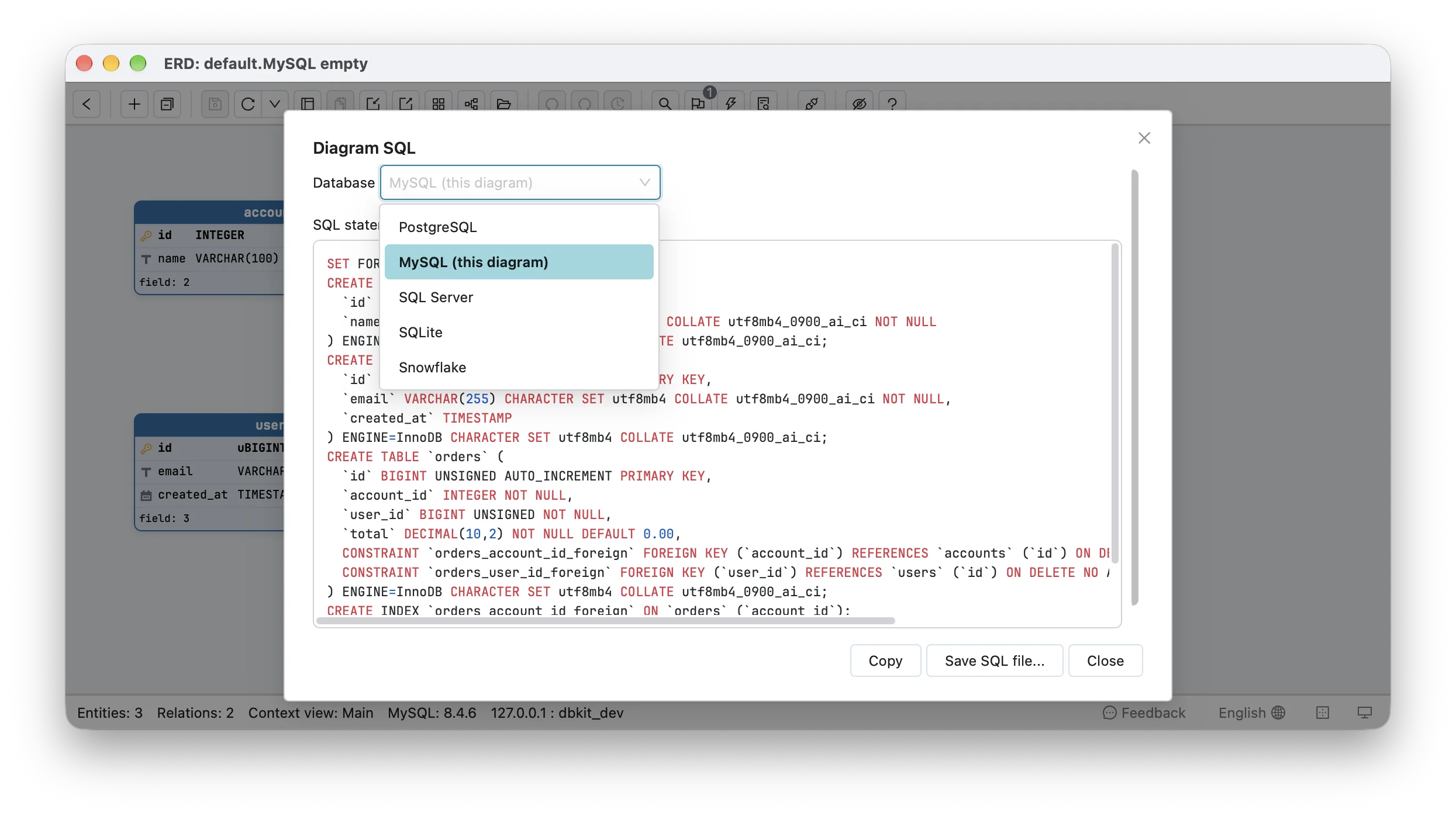
The conversion translates types, functions, defaults, enums, identity and generated columns, and shortens names that are too long for the target. The report lists every type it changed and anything it could not translate, such as a default or check expression kept as written. Converted scripts are tested by running them on real PostgreSQL, MySQL, SQL Server, and SQLite databases, and a column in a key gets a type the target can index - TEXT becomes VARCHAR(255) on MySQL, for example, because MySQL cannot index TEXT. The diagram itself is left untouched, so you can produce MySQL DDL from a PostgreSQL design without forking it. Any direction works: convert a PostgreSQL schema to MySQL or SQL Server, a MySQL or SQLite schema to PostgreSQL, or a SQL Server schema to PostgreSQL. It converts the schema, not the data: you get the CREATE TABLE script for the target, and you move the rows with your usual tool, such as pgloader or the target database’s import. Snowflake works in both directions: export a PostgreSQL design as Snowflake SQL, or a Snowflake design as PostgreSQL. Snowflake relations leave out ON DELETE and ON UPDATE, which Snowflake never enforces.
Text exports - SQL, DBML, Mermaid, PlantUML, D2, OpenAPI, and the Markdown data dictionary - open in a preview first, with Copy, Save, and a line count.
Does exporting or converting SQL send my schema anywhere?
No. SQL export and conversion between databases run entirely on your machine, inside the Schemity app. Nothing is uploaded to a server and no AI service is called, so the schema never leaves your computer, and both work with no internet connection at all, including on an air-gapped machine. That is the difference from online SQL converters, which need you to paste your schema into someone else’s website, and it matters when the schema itself is confidential: a client’s database under NDA, or a production system you are not allowed to share.
Can I export SQL without a live connection?
DDL generation does not need a live connection. Even a design-only diagram, with no database behind it, exports a complete SQL script you can run elsewhere - a fresh environment, a test database, or a new service.
Can I export my ERD as a Mermaid diagram?
Yes. Choose the Mermaid export to save the diagram as a Mermaid erDiagram file. Paste its content into a fenced ```mermaid block in any Mermaid-enabled platform - GitHub, GitLab, Notion, Obsidian - and the platform renders the schema as a vector diagram, straight from the markdown. Because the diagram is text inside the document, schema updates show up as a readable diff instead of a replaced image. Each relationship line is labelled with its description, or with its foreign key name when it has none.
The Mermaid, PlantUML, D2, and OpenAPI examples below are all exported from this diagram: four legends (content, account, audit, and config) and a relationship from articles to attachments described as Article's attachments.
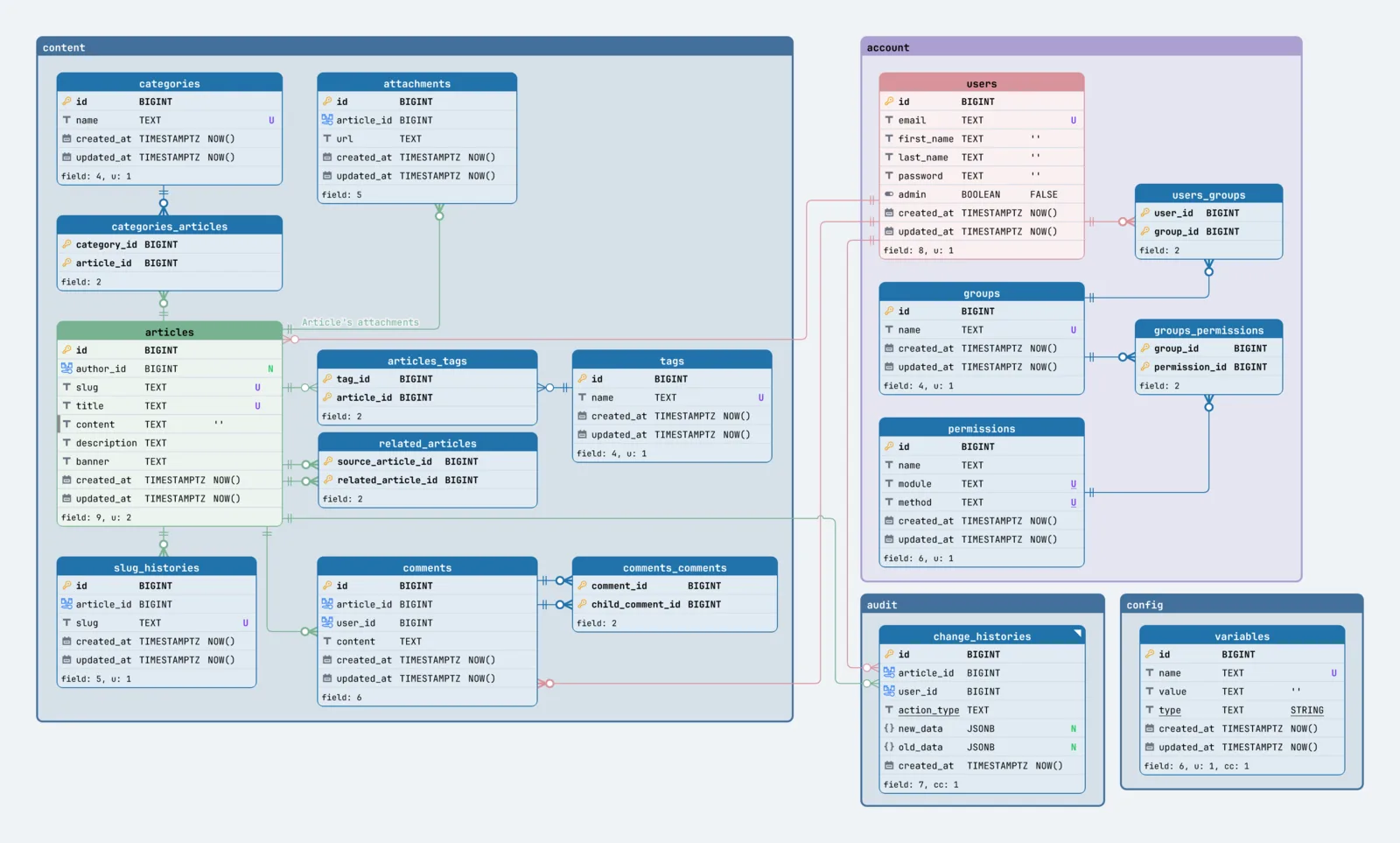
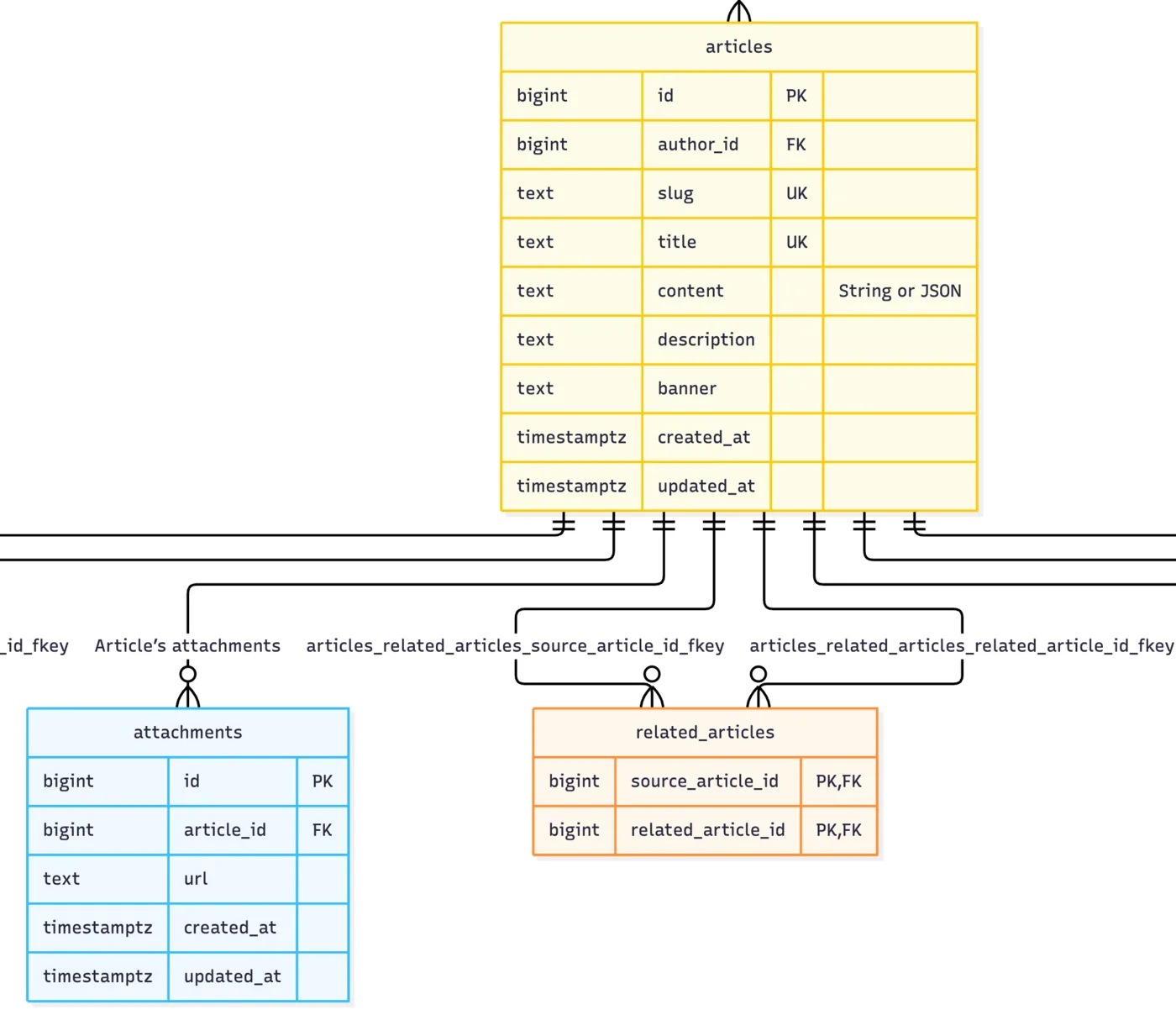
Note that Mermaid carries entities and relationships, not your canvas layout - the renderer arranges the diagram itself. When the arrangement matters, export SVG instead.
Can I export my ERD as PlantUML?
Yes. Choose Export > PlantUML file to save the diagram as a .puml file: a PlantUML entity diagram with crow’s foot relationships, each table listing its columns, types, and keys. A relationship with a description carries it as the line’s label. Render it anywhere PlantUML runs - the IntelliJ and VS Code plugins, Confluence, or the PlantUML server - and keep the file next to your other .puml architecture diagrams.
Your legends come along as groups. Each legend becomes a UML package: a named frame around the tables inside it, so the domains you drew on the canvas - account, content, audit - stay visible as domains in the PlantUML render. Tables outside every legend sit outside any package. The Mermaid export has no grouping, so use PlantUML or D2 when the domains matter.
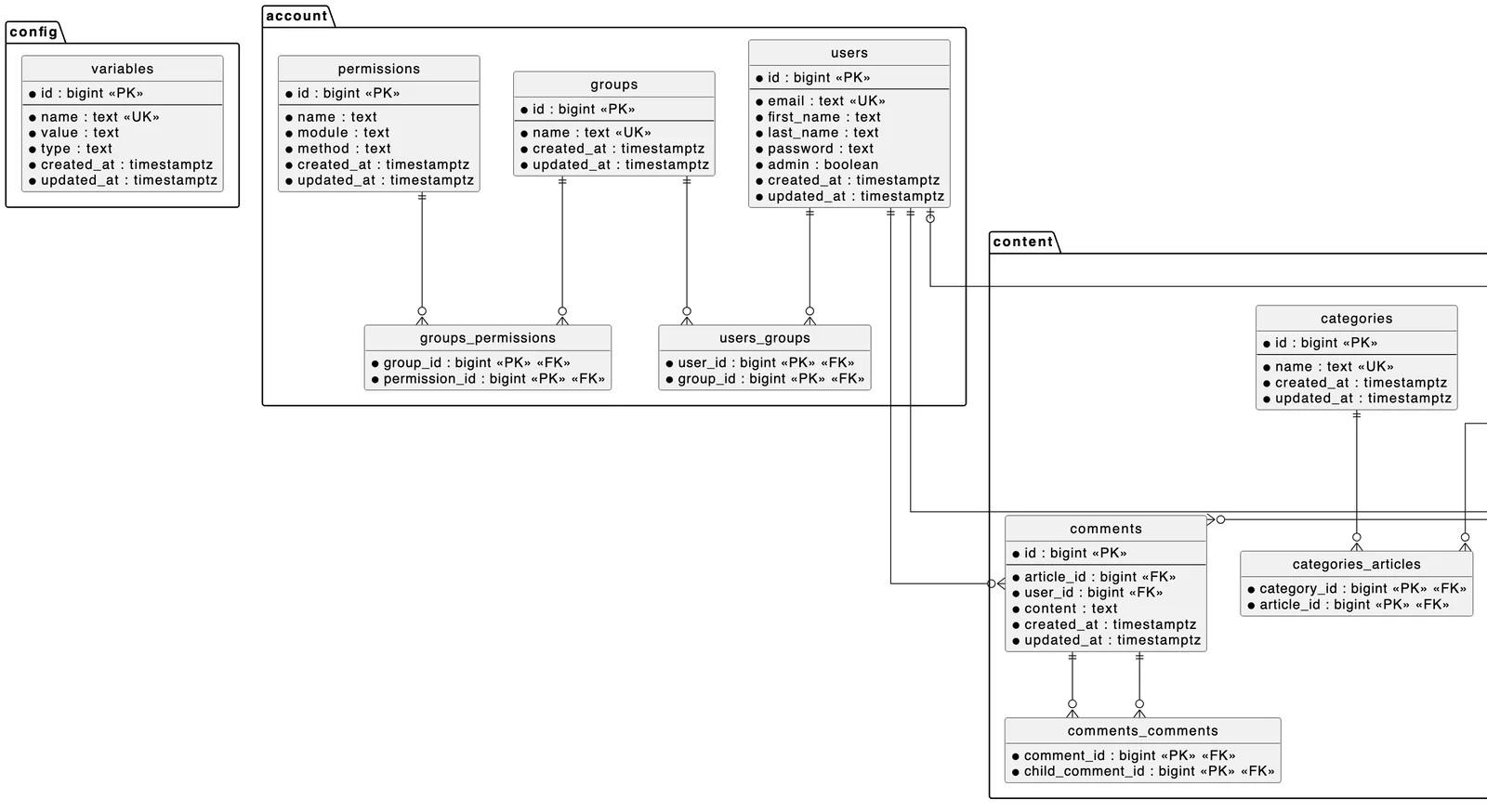
PlantUML lays the diagram out itself, so positions and colors are not carried. Foreign key names, defaults, indexes, and check and composite unique constraints are left out; use the SQL export when you need them.
Can I export my ERD as a D2 diagram?
Yes. Choose Export > D2 file to save a .d2 file in which every table is a D2 sql_table, with its columns marked primary_key or foreign_key, and every foreign key drawn column to column with crow’s foot arrowheads, labelled with the relationship’s description when it has one. Render it with the d2 command line tool, for example d2 billing.d2 billing.svg, and pick whichever D2 layout engine you prefer.
Legends group the tables here too. Each legend becomes a D2 container: a titled box that holds its tables, so account, content, and audit render as separate domains and the layout engine keeps each domain’s tables together. Lines between domains cross the container borders, which makes the dependencies from one domain to another easy to spot. Tables outside every legend stay at the top level.
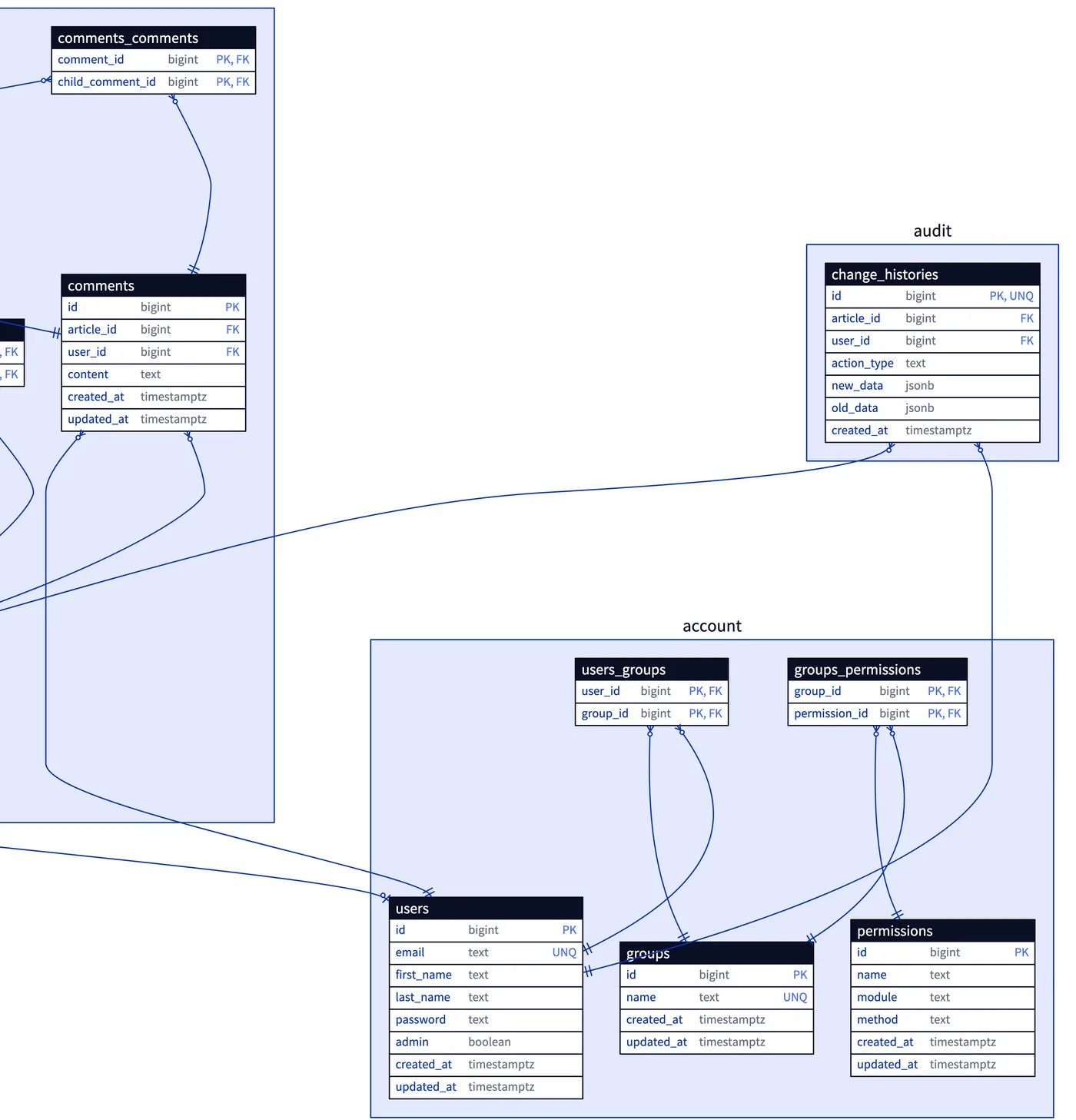
As with PlantUML, D2 places the tables itself, so positions and colors are not carried. A sql_table row has no room for a description, so descriptions are written as # comments in the file instead. Foreign key names, defaults, indexes, and check and composite unique constraints are left out.
Can I export my schema as OpenAPI?
Yes. Choose Export > OpenAPI file to save an OpenAPI 3.1 document, <name>.openapi.json, with one schema per table under components/schemas: each column’s JSON type, which columns are required and which are nullable, enum values, and descriptions. Use it as the starting point for API models and generated client types, so they begin from the database’s real columns instead of a hand-copied list.
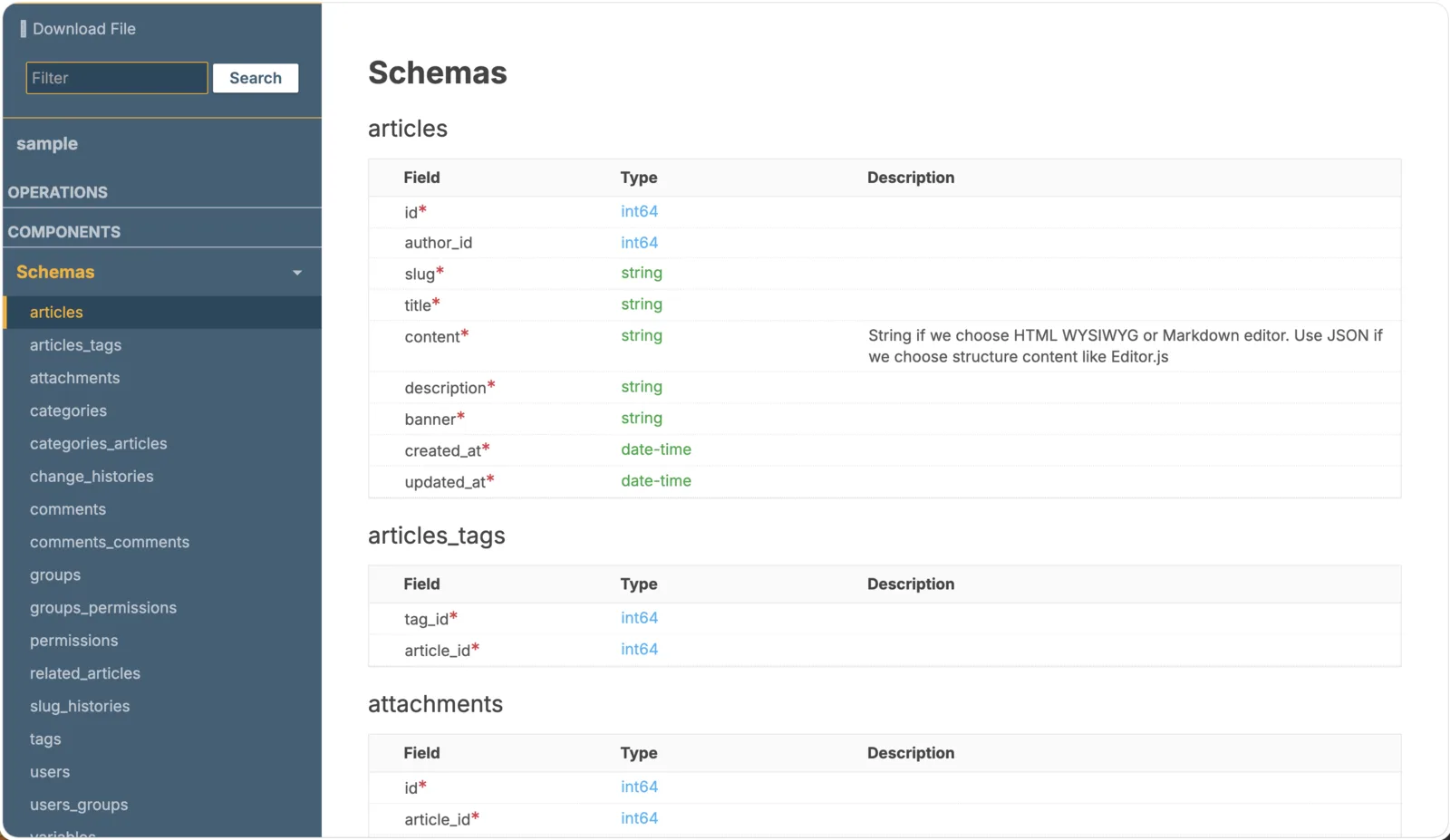
It describes the data, not an API: there are no paths and no request or response variants, because those are design decisions a schema cannot make. OpenAPI has no keyword for foreign keys or unique columns, so they are kept as x-references and x-unique, and every property carries its exact database type in x-db-type, so nothing is lost when a type has no JSON equivalent. The file is JSON, which is also valid YAML, so rename it if your tools want .yaml. Defaults, indexes, check and composite unique constraints, and legends are left out.
Should I commit the generated SQL to Git?
Commit the generated SQL alongside the JSON diagram. Reviewers then see both the visual change and the exact SQL in the same pull request.
Next
Evolve an existing database safely with Migration SQL Diff.