A connection in Schemity is both a database target and a diagram. Each connection lives inside a workspace and is saved as one JSON file. You can design entirely offline, or attach connection details so Schemity can read a real database and turn its structure into an ERD. Either way, your schema and your data stay on your machine - this is database design software with no cloud, and the security review lists exactly what it reads and sends.
What do the fields in the connection form mean?
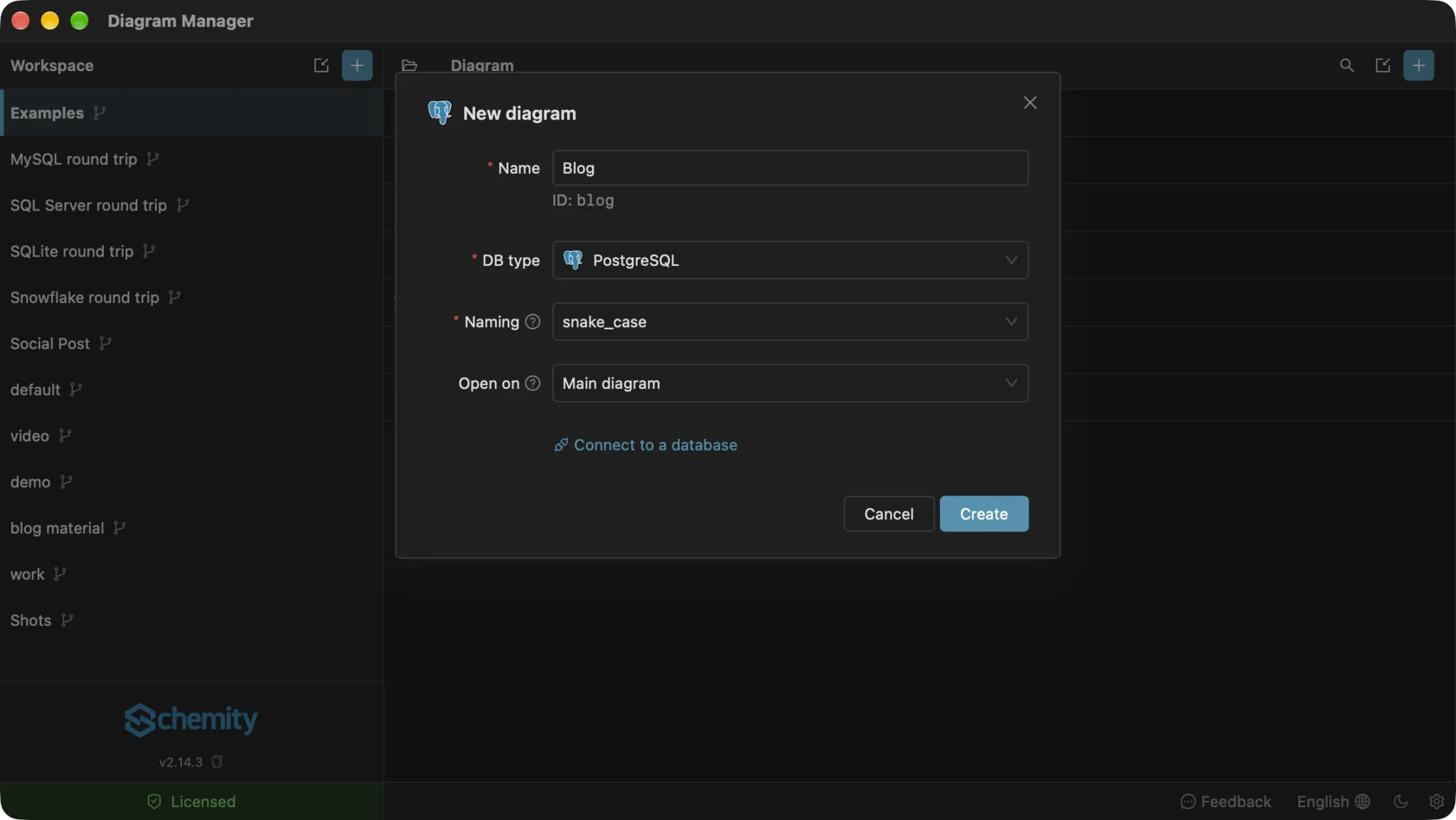
Click + above the diagram list to open the New diagram form. Its title carries the logo of the database you pick, so you can tell at a glance which one a diagram speaks. It starts design-only, with four fields:
- Name - a label such as
Production DBorLocal dev. The diagram’s ID, derived from the name, shows under it. - DB type - the engine: PostgreSQL, CockroachDB, MySQL, SQL Server, SQLite, or Snowflake. It decides the data types and the SQL Schemity generates, even with no database behind the diagram.
- Naming - the naming convention Schemity uses for generated names:
snake_case,camelCaseorUPPER_SNAKE_CASE. A new Snowflake diagram starts withUPPER_SNAKE_CASE, the case Snowflake stores unquoted names in. - Open on - the view the diagram opens on: the main diagram, or the Context Map.
That is a complete diagram: fill those in, click Create, and start drawing. No live database is involved.
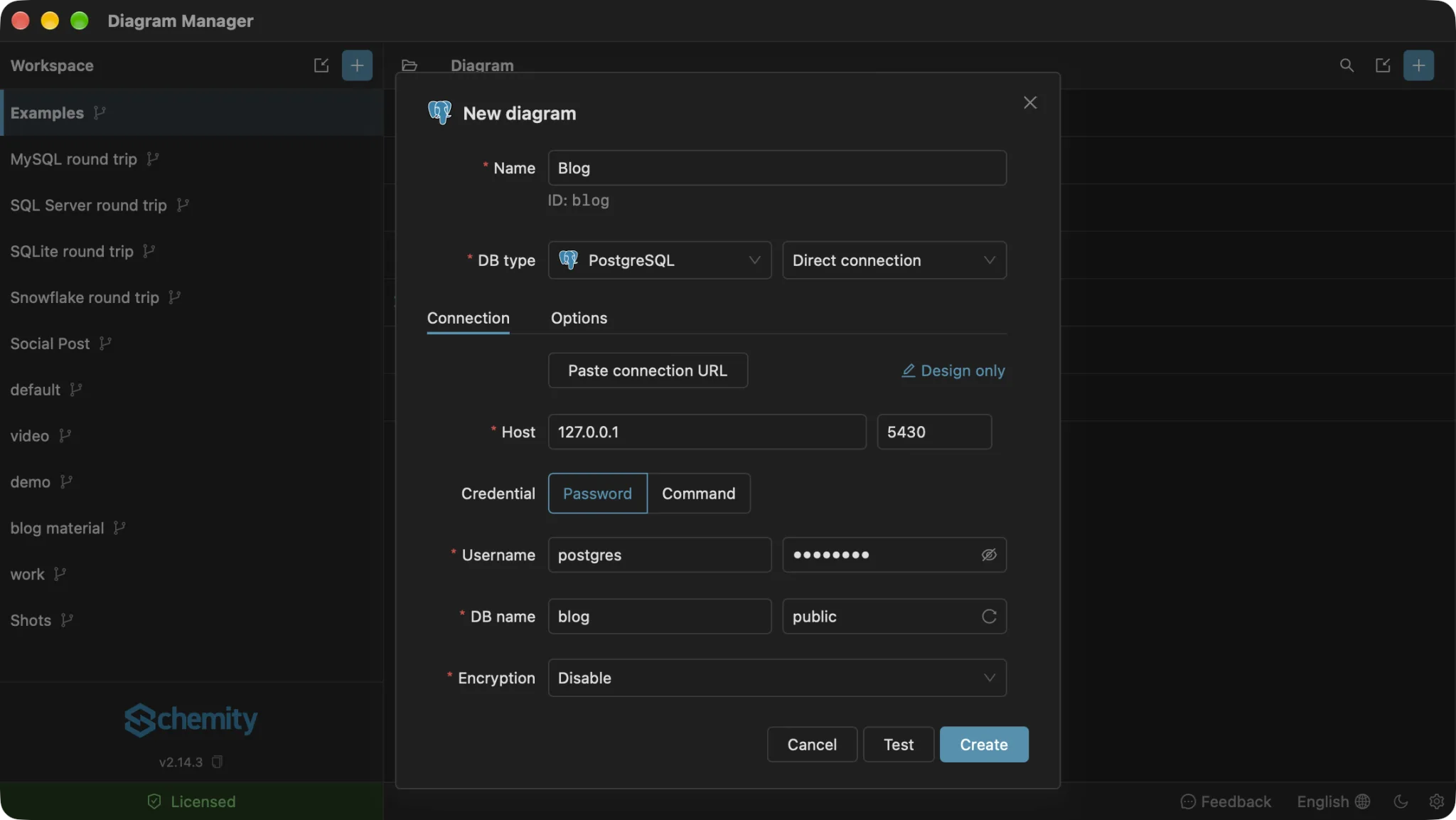
To attach one, click Connect to a database. Connect via appears beside DB type, and the rest of the form splits into two tabs, Connection and Options, so it fits on a laptop screen without scrolling. A Design only link on the Connection tab takes you back.
Connect via decides how Schemity reaches the database:
- Direct connection - connect over an accessible host and port.
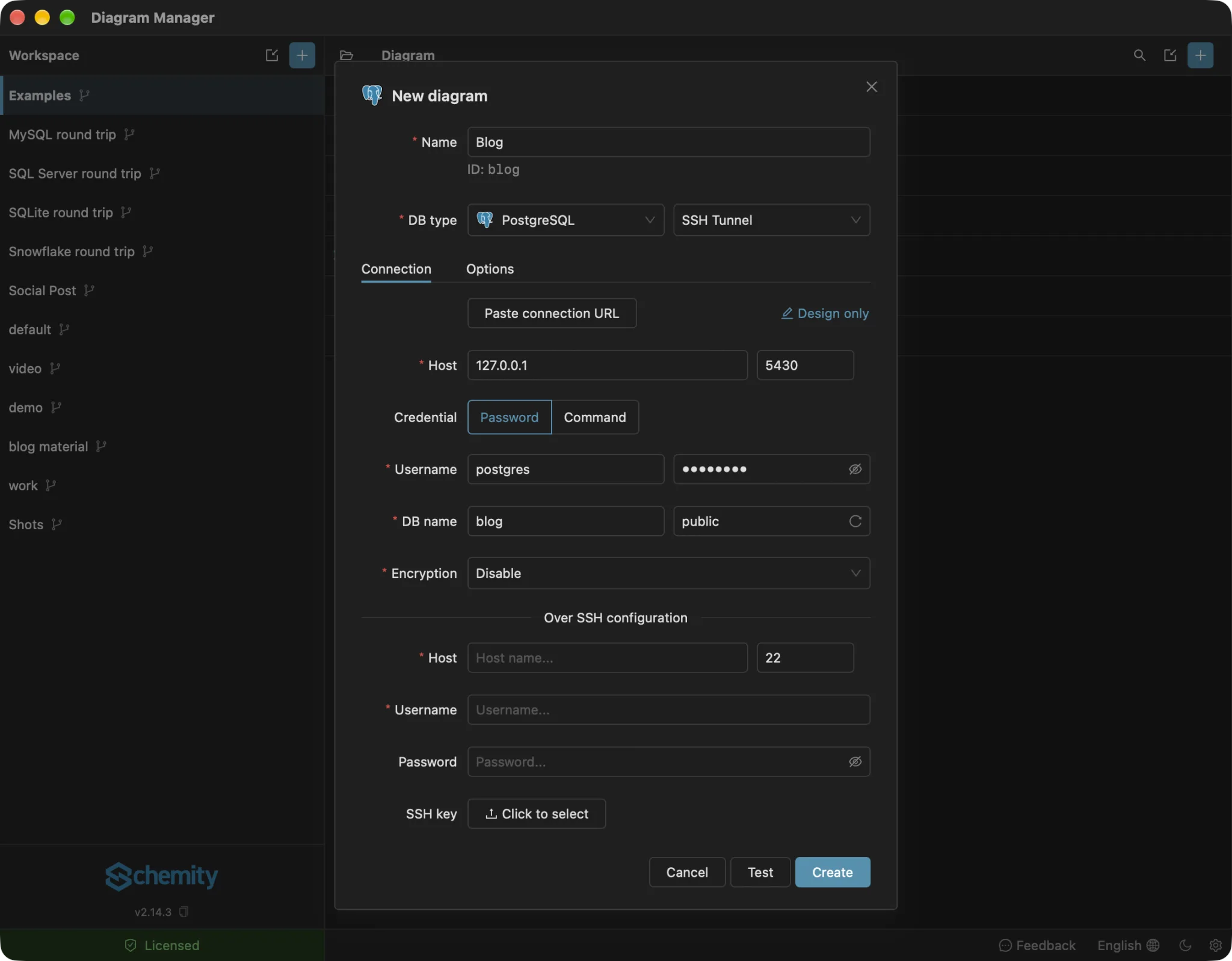
- SSH Tunnel - connect through a jump/bastion server. Not offered for SQLite, which is a local file, or for Snowflake, which is reached over HTTPS.
What is on the Connection tab?
The tab opens first, because it is what a new connection needs. It holds Paste connection URL and the database’s own fields, described field by field in each engine’s guide: the host and port, the credential, Username beside Password, DB name beside Schema, and the encryption. SSH Tunnel adds an Over SSH configuration block on the same tab for the jump server’s host, port, username, password, and SSH key.
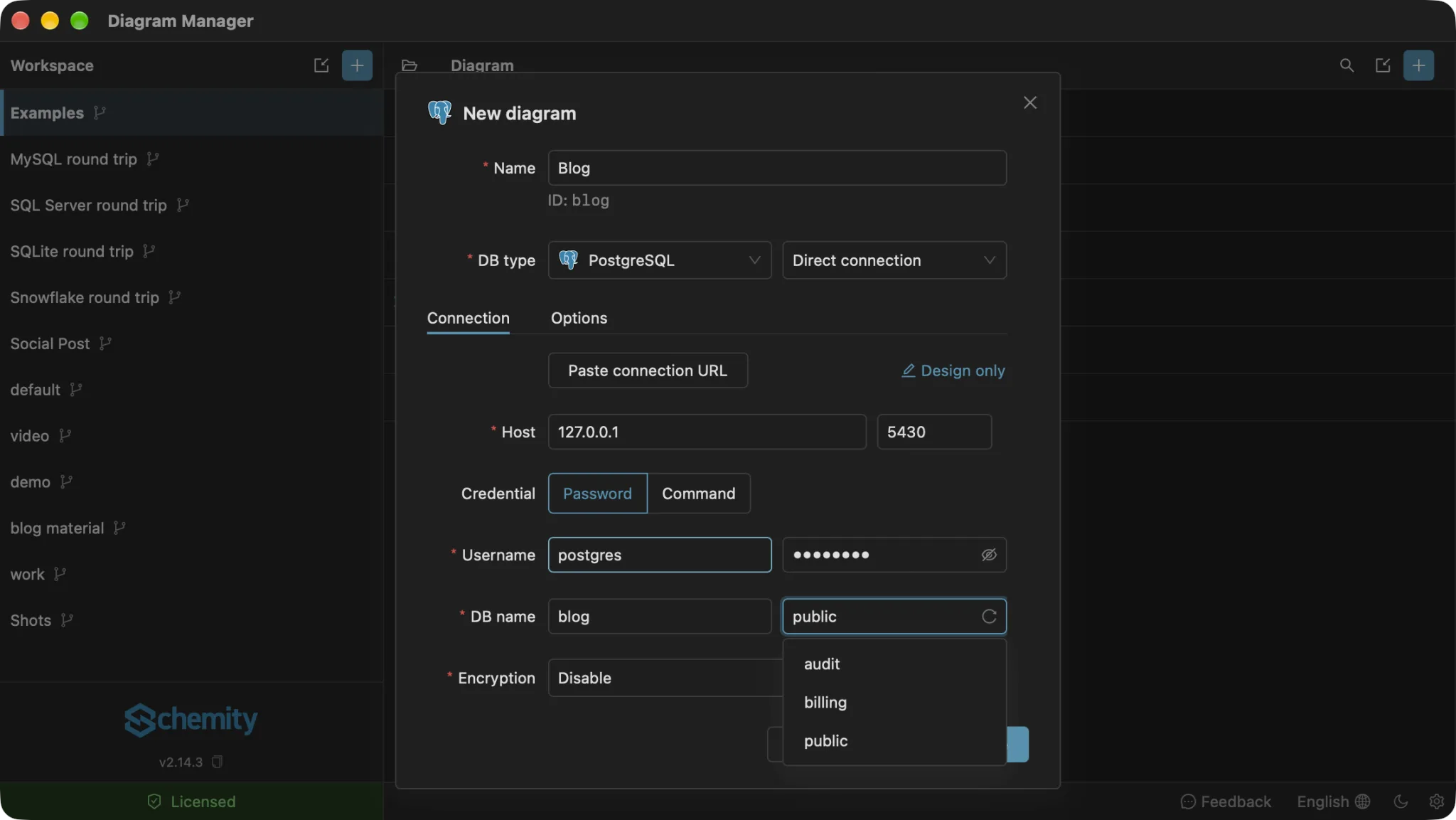
On PostgreSQL, CockroachDB, SQL Server and Snowflake, the Schema field has a refresh button inside it. It reads the database’s schemas with what the form holds right now, the same way Test does, so it works before the diagram is saved, through an SSH tunnel or a password command, and with a blank password on a saved diagram. The schemas appear in a list to pick from, and you can still type a name that is not in it. System schemas such as pg_catalog, information_schema, and SQL Server’s sys are left out.
What is on the Options tab?
Settings that have a sensible default and rarely change when you create a diagram:
- Naming and Open on - as above.
- ENV type - an optional label: Local, Staging, or Production. It is a tag shown next to the connection in the connection list to help you tell environments apart; it has no effect on how Schemity connects. Choosing Production turns on the next setting by default.
- Ask for the database name before applying a migration - with this on, Apply in the migration dialog stays disabled until you type the database name, so a change meant for staging cannot land on production by a slip. It is per connection, and on by default for Production.
- Infer virtual relations from column names - on by default: a column such as
user_idgets a dashed virtual relation touserswhere the database declares no foreign key.
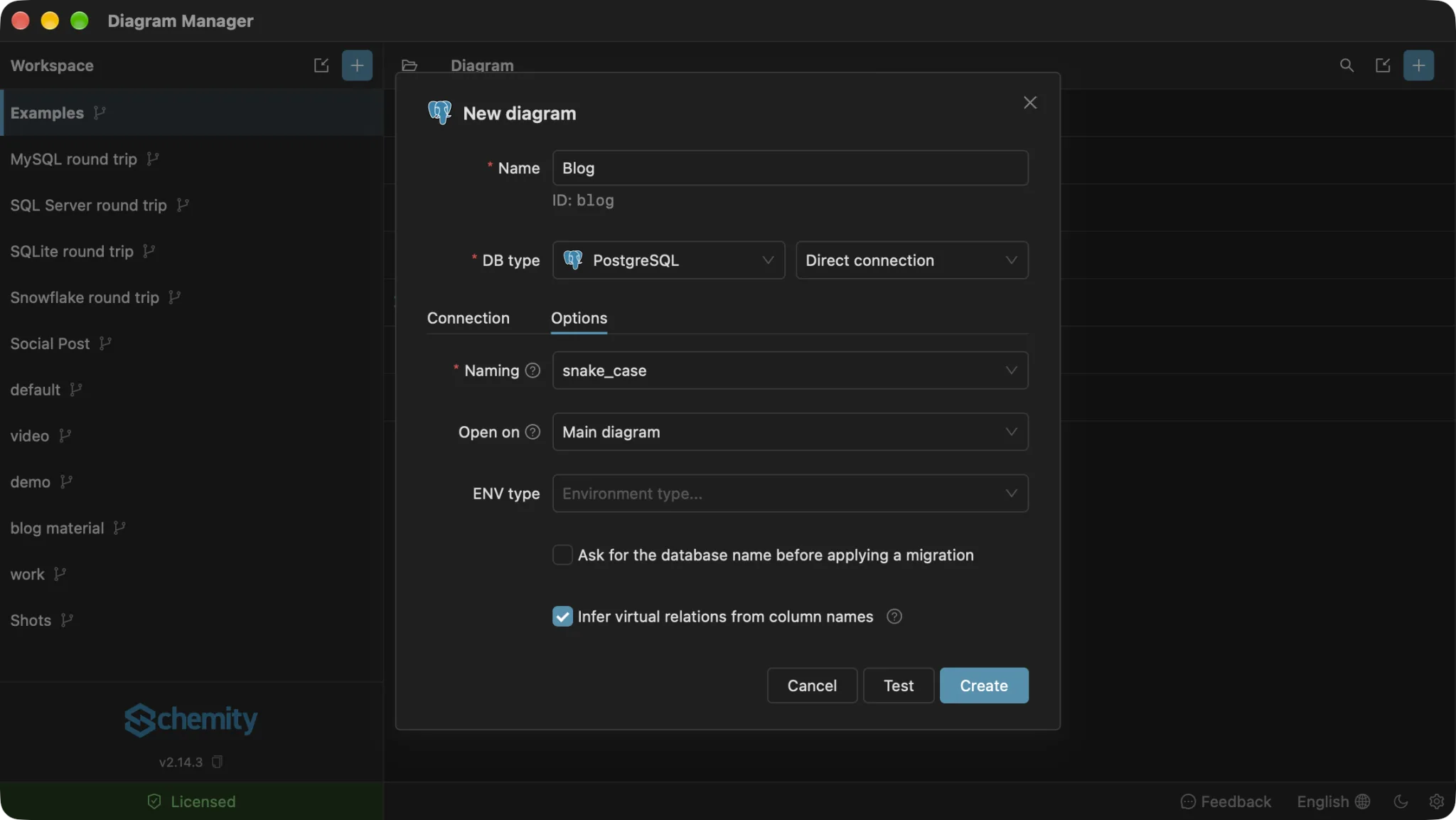
Both tabs are checked when you click Test or Create. If a field fails on the tab you are not looking at, the form switches to it and marks the tab with a red dot, so a click never does nothing without saying why. A Test button next to Create checks the connection before you save it.
Can I paste a connection string instead of filling in the form?
Yes. Click Paste connection URL above the database fields, paste the string, and choose Fill the form. Schemity accepts:
- URIs -
postgresql://,postgres://,mysql://,mariadb://,sqlserver://, andmssql://, for examplepostgresql://user:pass@host:5432/dbname?sslmode=verify-full. - A
jdbc:prefix -jdbc:postgresql://..., and thejdbc:sqlserver://host:1433;databaseName=...form. - The ADO.NET key/value form that the Azure portal hands out, such as
Server=...;Database=...;User Id=....
It fills the host, port, username, password, database name, and engine, plus the encryption mode from sslmode or ssl-mode, the root CA from sslrootcert or ssl-ca, and the schema from schema, currentSchema, or a libpq options=-c search_path=.... Anything it did not use is listed in the confirmation, so nothing is silently dropped. A string it cannot read fills nothing and tells you why. The pasted string is only used to fill the form and is never saved.
sslmode=allow and prefer are filled as Require rather than Disable: both quietly fall back to an unencrypted link, and a clear failure at connect time is better than sending production credentials in plain text.
How do I encrypt the connection and verify the server certificate?
Set Encryption in the database configuration block. There are four modes:
- Disable - no encryption, for local development only.
- Require - encrypt, but do not check the server certificate.
- Verify CA - encrypt and check that the certificate was signed by a trusted certificate authority.
- Verify full (recommended) - encrypt, check the authority, and check that the certificate belongs to the host you are connecting to.
The two verify modes show extra fields. Root CA is the certificate authority file to check against; leave it blank to use your system’s trusted roots, or pick the CA file your provider gives you (AWS RDS, Azure, Google Cloud SQL, or a private CA). PostgreSQL and MySQL also take a Client cert and Client key for servers that authenticate clients by certificate; the two go together, so setting one requires the other. SQL Server does not support client certificates.
Can the password come from a command instead of being stored?
Yes. Set Credential to Command and enter a shell command whose output is the password. Use it for credentials that expire or should never sit on disk:
- AWS RDS IAM tokens -
aws rds generate-db-auth-token ... - HashiCorp Vault -
vault kv get -field=password ... - A password manager -
op read op://...for 1Password, or your manager’s CLI.
Click Test command to run it once and see that it returns a credential; it reports the length, never the value. The command runs through your login shell, so the tools on your usual PATH are found even when Schemity was opened from the Dock or Start menu. It gets 30 seconds, which leaves room for a Touch ID prompt or an SSO refresh.
The result is kept in memory for five minutes, so opening a connection runs the command once rather than on every query, and it is never written to disk or to the keychain. Editing the command discards the cached value.
Because a connection file travels with its workspace through Git or a shared folder, a command you did not write never runs on its own: Schemity asks you to approve that exact command for that connection on this machine before its first run. Approvals are stored outside every workspace, so a synced file cannot approve itself. Keep secrets out of the command text itself, since it is saved in the connection file.
Do I need a license to connect to a live database?
Designing a diagram with no database behind it is free. Connecting to a live database with Direct connection or SSH Tunnel - and the reverse-engineering, migrations, and SQL import that depend on it - is unlocked by a one-time desktop license.
Which database engines does Schemity support?
- PostgreSQL, including Supabase, managed PostgreSQL and CockroachDB (connected as PostgreSQL)
- MySQL
- SQL Server
- SQLite
- Snowflake (read-only: Schemity reads the schema and never migrates it)
Where are my database passwords stored?
Connections run from your machine directly to your database, so a host on localhost, a private VPN, or an isolated network all work. Passwords are never written into the JSON file - Schemity stores them in your operating system’s keychain. This is what keeps it usable on an air-gapped machine.
How do I open a database read-only?
To browse a database without any risk of changes, right-click a saved connection and choose Open read-only. Schemity opens the diagram in a view that blocks edits and migrations.
Next
Pick your engine and follow its field-by-field guide, starting with Connect to PostgreSQL.