
You are mid-flow. A schema idea is forming - three new entities, two relations, a junction table. You know exactly what you want. Then you reach for your ERD tool and the friction starts. Click to add a table. Click to name it. Click a field button. Click a type dropdown. Click to add another field. By the time the diagram catches up, the mental model you were holding has started to dissolve.
This is not a minor annoyance. Diagramming tools that require constant mouse navigation interrupt the kind of thinking that good schema design demands. Schemity is built around the opposite assumption: the tool should move at the speed of your thoughts, not the other way around.
Keyboard-first, from the ground up
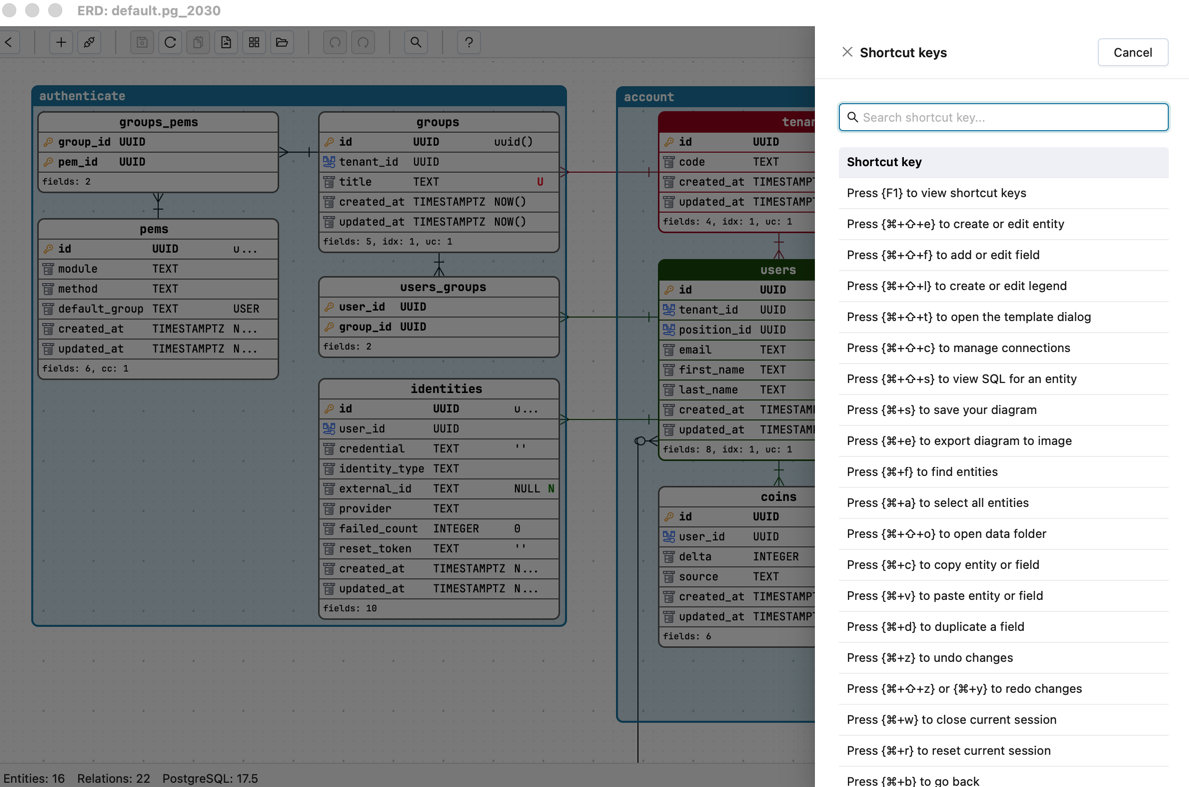
Every core action in Schemity has a keyboard shortcut.
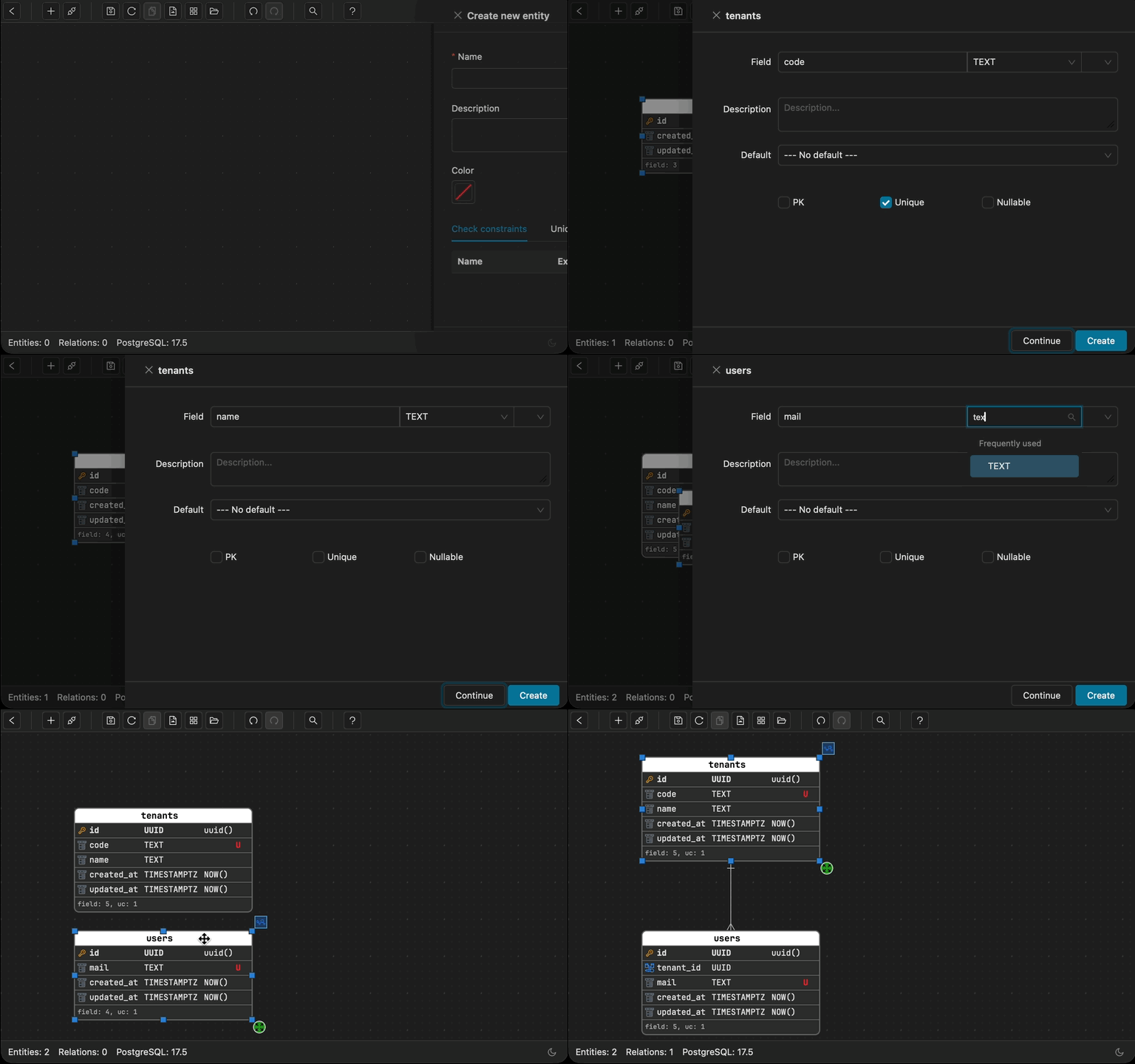
Creating a new entity, adding a field, renaming, deleting, navigating between entities - none of it requires you to leave the keyboard. You can build an entire schema from scratch without touching the mouse. For engineers who think with their hands already on keys, this is the difference between a tool that helps and one that gets in the way.
The shortcuts are designed around the actions you reach for constantly. Creating a new entity is one key. Adding a field to the selected entity is one key. Moving focus between entities uses the keys you already know. Nothing is buried three levels deep in a menu you have to hunt for.
When you are iterating quickly - trying out a structure, discarding it, trying another - the keyboard path lets you keep the iteration tight. The cost of “wrong idea, start over” drops close to zero when starting over takes three keystrokes.
Here’s a quick reference for the shortcuts you’ll reach for most:
Move entities without touching the mouse
Getting your layout right usually means a lot of dragging - and every time you reach for the trackpad mid-thought, you risk losing the thread. You are no longer thinking about the schema; you are thinking about where to put the box.
Schemity lets you move entities with keyboard shortcuts directly. Select an entity, shift it across the canvas, nudge it into alignment without leaving the keyboard. The layout improves and the thinking never stops.
The point is not that mouse interaction is forbidden. It is that it is never required. You choose the mode that fits the moment.
Entity templates - skip the boilerplate every time
Every entity in your schema probably starts the same way: a primary key, a few timestamps, maybe a soft-delete field. You know this before you even name the table. But most tools make you add those fields from scratch every single time.
Schemity lets you define a default field template that gets applied the moment a new entity is created. Set it once - id, created_at, updated_at, deleted_at, whatever your project conventions are - and every new entity starts pre-loaded with those fields. No repetition. No forgetting to add created_at on the third entity of the session.
This is the kind of small friction that compounds badly at scale. If you are designing a schema with twenty entities and each one needs four boilerplate fields, that is eighty manual field additions that add zero design value. Templates eliminate all of it.
Fields land where they belong - automatically
There is a specific kind of tedium that every database designer knows: you add a foreign key field, and it appears at the bottom of the field list. Then you drag it to the top. You add another one, same thing. You add a note field and it lands below deleted_at. You drag it back up.
Schemity removes this entirely with smart field placement.
When you add a foreign key, it goes to the top of the field list - grouped with the primary key where it belongs. When you add a regular field, it slots in between the foreign keys and the timestamp fields (created_at, updated_at, deleted_at). The structure your team actually wants - primary key, foreign keys, business fields, timestamps - is maintained automatically without you touching field order at all.
The result is that the field list is always in the right shape. You never have to stop and reorganize. The tool keeps the structure clean so you can keep thinking about the schema.
Drag to create relations - and just choose what kind
The one place where spatial interaction genuinely makes sense is connecting entities. Relations are inherently visual - drawing a line between two things is more intuitive than typing a foreign key definition.
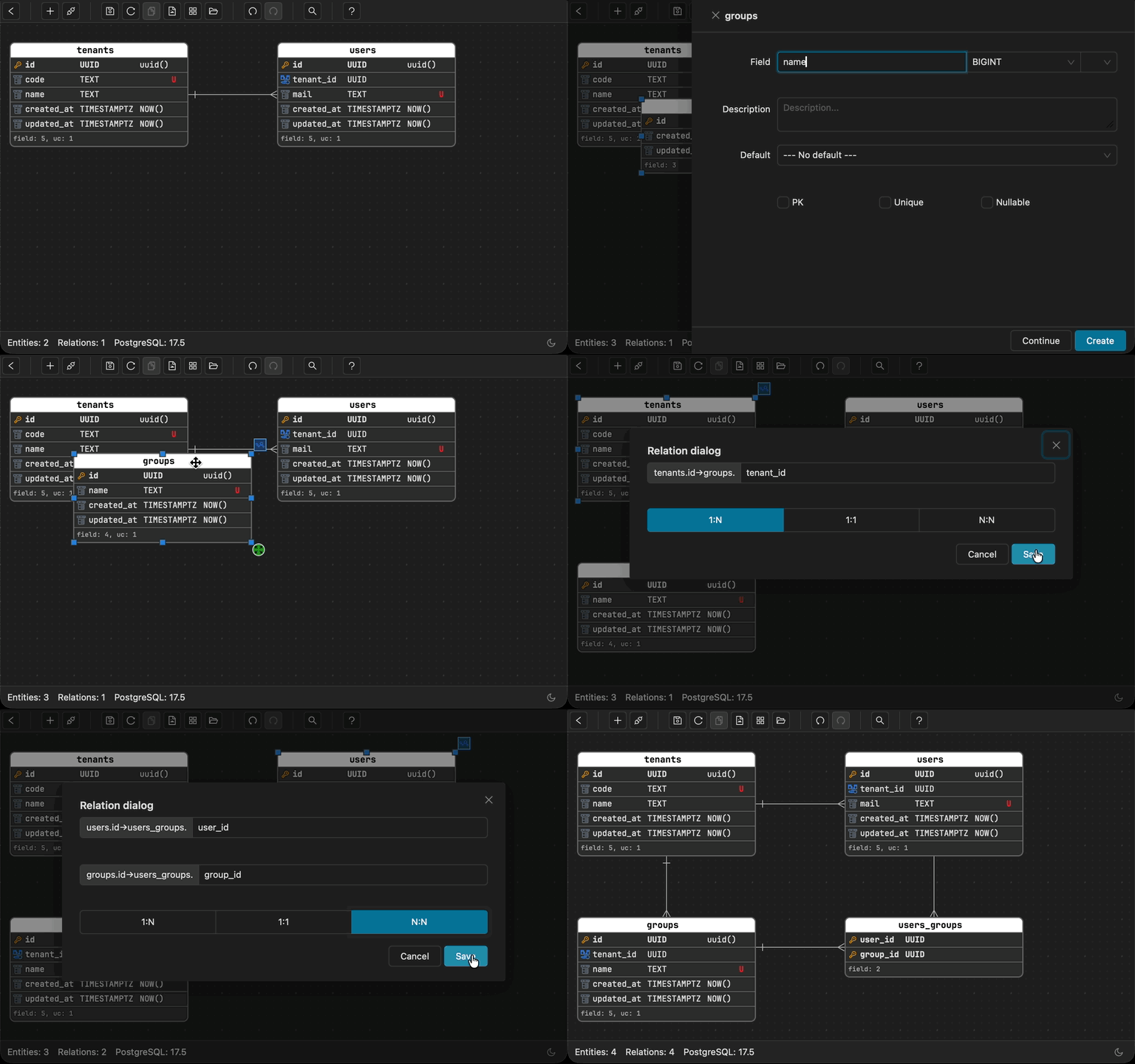
Schemity leans into this with drag-to-relate. You drag from one entity to another, and Schemity asks a single question: what kind of relation is this? Pick from 1:N, 1:1, or N:N. That is the entire interaction. Schemity handles the rest - the junction table for many-to-many, the foreign key placement, the visual representation on the canvas.
No wizard with five steps. No configuration panel. No dropdown trees. Drag, pick a type, done. The relation appears and you move on.
Notice what Schemity does not ask: it never prompts you to choose between 1:N and N:1. It does not need to - the drag direction already carries that information. Drag from Order to User and choose 1:N, and Schemity knows the “one” side is User. Want it the other way? Drag from User to Order instead. The direction is the answer; the type picker only needs three options.
This is what the drag interaction is actually good for: expressing intent between two things you can already see. Everything else is better handled by the keyboard.
Why friction is the real problem
Schema design is a thinking activity. You are working out how data relates, where boundaries should be, what will make queries simple or painful six months from now. That kind of thinking is fragile - it lives in working memory, and it gets interrupted by anything that demands your attention for the wrong reason.
Every time you have to click through a menu, hunt for a button, or wait for a modal to load, you are spending cognitive budget on the tool instead of the problem. The cumulative effect is real: you get through fewer ideas per session, lose threads mid-thought, and end up with diagrams that reflect what was easy to build rather than what was right.
Schemity’s design philosophy is that the tool should be invisible. Keyboard shortcuts for everything that happens repeatedly. Drag for the one interaction that is genuinely spatial. Nothing else.
When the tool disappears, the thinking can flow.
Try the keyboard path
Open a blank canvas. Build something real - a schema you have been meaning to sketch out, a new feature you are about to start. Use only the keyboard. Drag to relate what needs relating.
That is the gap Schemity is trying to close. The tool that keeps up with your thinking is the one you actually use.